The SISfm Job Scheduler is an Administrator module utility which is used to run specified tasks periodically in the background.
Job Scheduler is available if web.config application setting JobScheduler is defined. Its value must be the SISfm application's root URL.
For correct operation, Job Scheduler requires the following IIS (Internet Information Server) settings for the SISfm application:
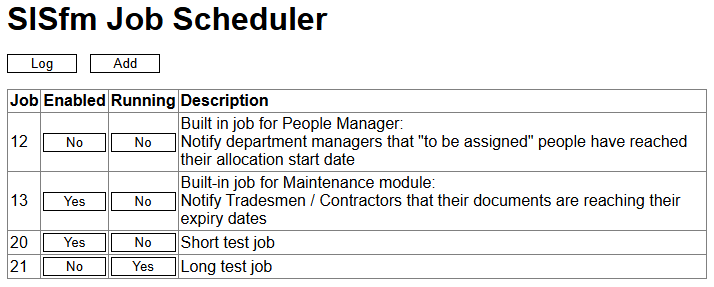
Jobs are saved in database table sisfm_job but should not normally be edited there. Job Scheduler lists these jobs, each with a system-generated job number, its enabled status, and a description:
Select Enabled Yes or No to enable or disable scheduling of a job.
Select Running Yes or No to start or stop a job immediately.
Select Log to view the Job Scheduler log temp/job-log.txt in a new window. This includes initialisation entries followed by a "started" entry when a job is started and a "finished" entry when a job is finished (normally, by interruption or due to an error). As part of initialisation, a job is started to schedule any enabled jobs, and logs the response "Jobs startup completed".
Note that files in the SISfm temp folder are deleted if they have not been modified for 24 hours.
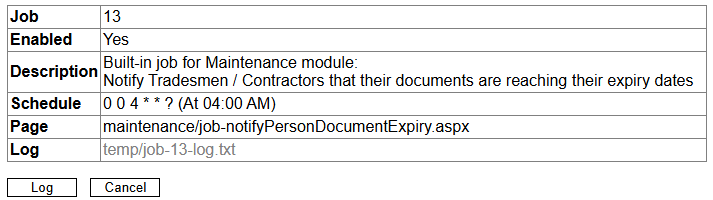
Select a job to review its details, select Log to view its log in a new window:
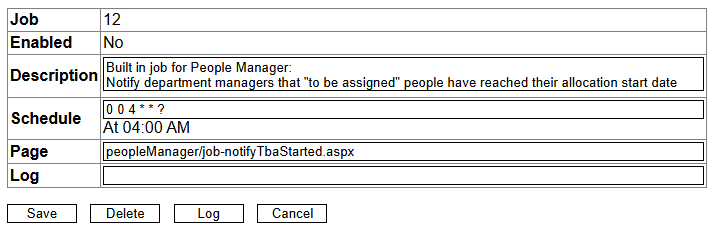
and if it is not enabled, select Delete delete it, Save to save any changes, and Cancel to return to the job list:
Select Add to add a new job:
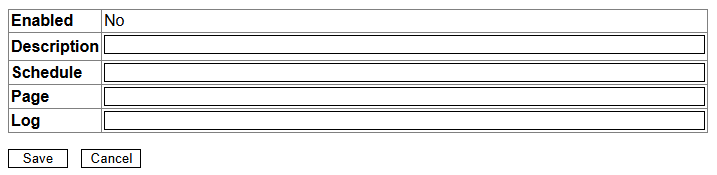
The Description for a job can be on multiple lines.
The Schedule for a job must be a cron expression.
The Page for a job must specify a custom ASPX page under the Custom Folder (except for built-in job pages, see below). The page may include querystring parameters.
The Log for a job must specify a TXT file under the Custom Folder. If omitted, temp/job-number-log.txt is used and displayed in gray in job details.
Job pages are ASP.NET ASPX files which may perform any desired task, including use of the SISfm Local API to:
Job pages should issue a plain text response - not an HTML response - which will be appended to the job log file, each line prefixed by date and time. For example:
<%
    Response.Write("Job X completed.")
%>
Job pages should catch all possible exceptions using an enclosing Try block to issue the exception message in the page response.
The job page response indicates the end of the job. For jobs that may take a long time, the job page may write a separate progress log file which can be periodically reviewed by refreshing it in a web browser, for example using:
<%
    Dim log = New System.IO.StreamWriter(PROGRESS_LOG_FILE, True) 'append to existing file
    log.WriteLine("progress_message")
    log.Flush()
    log.Close()
%>
The following built-in job pages can be scheduled: